Standard Toolbar Menu and How to Customize it on MT5
The Standard Toolbar on the MT5 is shown below:
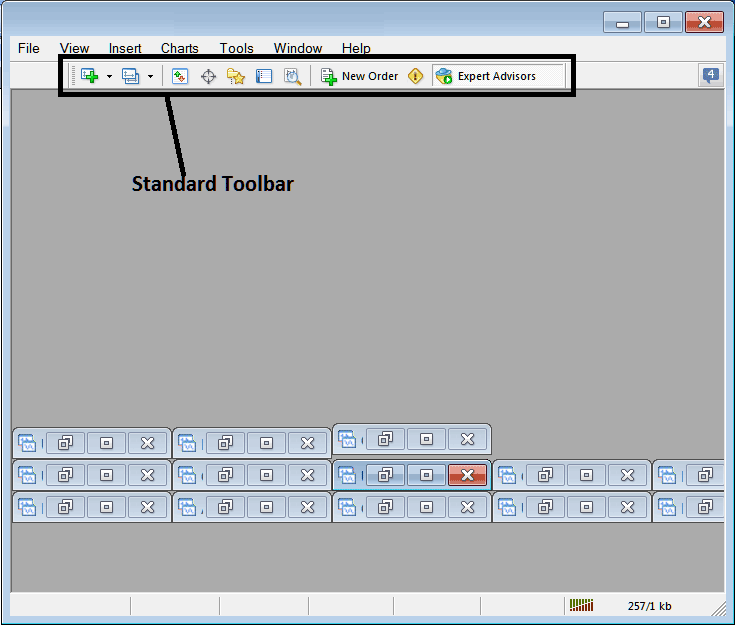
Before explaining how to use each tool listed on this standard toolbar, let's make sure that all the available buttons are added to it by customizing it:
- Right-Click in MT5 tool-bar customize button to the left as displayed below
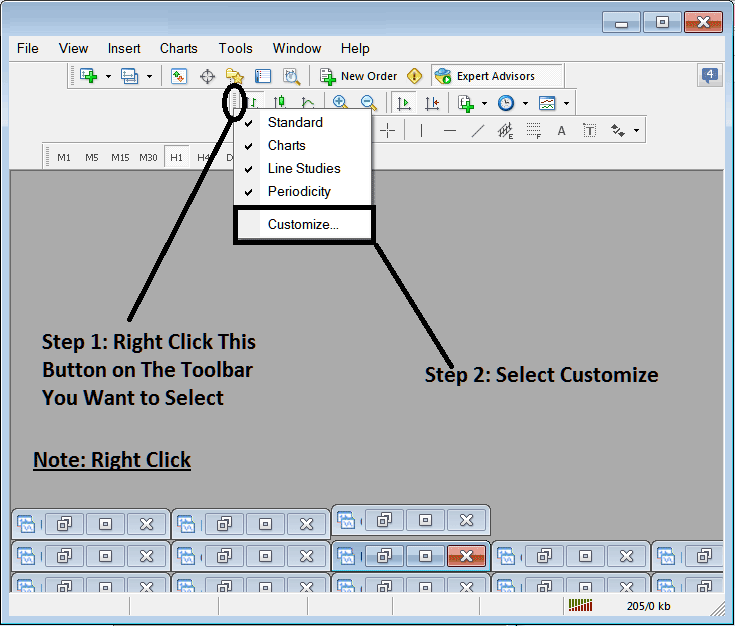
2. Click customize 3. Add all Tools
Add Tools
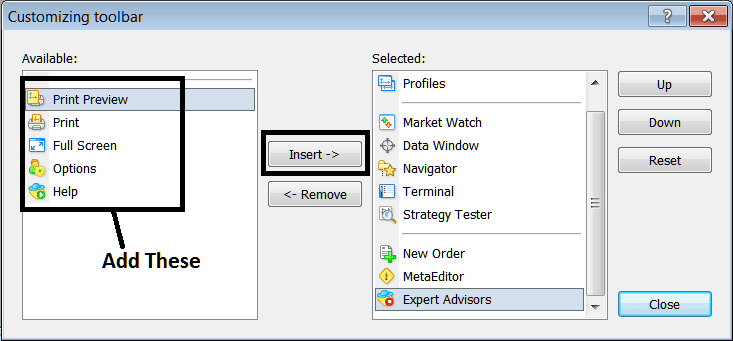
After Adding and customizing, it will look like:
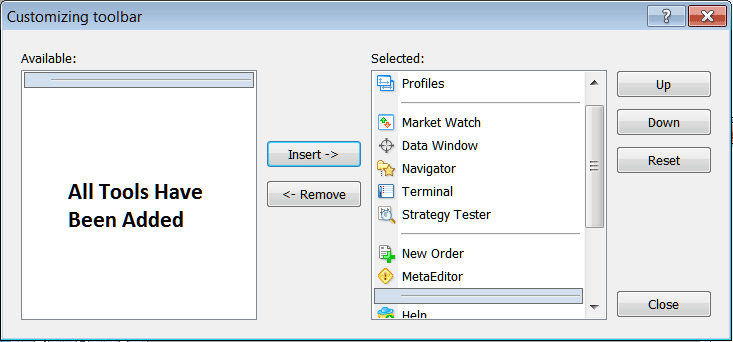
On the platform, the standard MT5 tool bar now looks like:
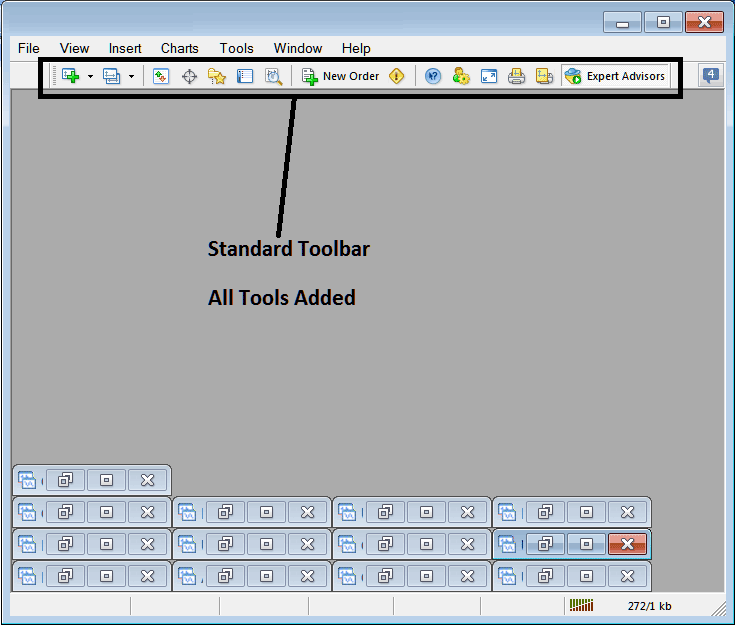
Explanation of Each Indices Tool on the Standard Toolbar

1: Opens a stock indices chart in MetaTrader 5 and a trader can specify which type of chart to open by clicking the drop down arrow next to its icon.
2: Profile - can be used to load a saved chart profile or to save a new chart profile - these options are provided as a sub menu from the dropdown arrow.
3: Opening and closing market watch window: market watch displays the indices trading quote indices prices for selected indices trading instruments.
4: Data panel opens & closes & it displays stock indices price data as well as other data like indicator's data.
5: Navigator Short cut, navigator displays Account data, indicators, scripts and Expert Advisors data.
6: Terminal window shortcut, displays the trades opened by a trader - shows open trades, balance, MT5 account equity, transaction history, news, Expert Advisors tab, signals tab and trade alerts tab.
7: Strategy tester opens the Indices Trading Strategy Tester & traders can test their Expert Advisors on this Indices Strategy Tester environment.
8: Places a new order by opening a popup panel where as a trader you can specify the indices trading to buy, the amount to trade, and if the order will be a market order or set as a pending stock indices trading order.
9: Meta Editor opens the Meta-Editor environment where a trader can add or program an EA or a new indicator in this Meta-Editor Environment.
10: Help, if you do not know something on the MT5 click on this & point on any MetaTrader 5 object and get an explanation.
11: Options setting for editing the MetaTrader 5 options which are used by your platform, these settings are the server settings and Expert-Advisors settings found under the main navigation menu on tools menu, options sub menu.
12: Full screen option for setting chart to full screen option, Shortcut is Keyboard Key "F11"
13: Print Chart
14: Print Preview
15: Expert Advisors - activates and deactivating Expert Advisors on a stock indices chart, clicking this button changes color from green to red, green color means Expert Advisor is allowed, red means EA execution not allowed.
Remove Buttons
As a trader you will not require all these buttons & you as a trader can use hide some of them by clicking customize (shown above), then select some of the items on the right side panel and then choose hide.
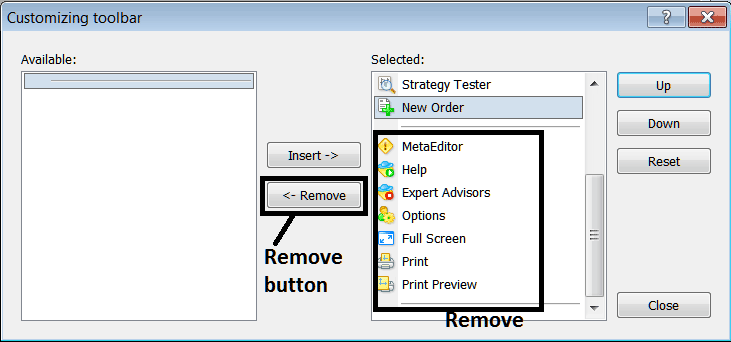
Remove the above tools by clicking on them and then clicking remove button key.
